CVEDIA-RT Plugin for Alpha VS - Operators Guide
This guide is designed for operators who need to search for events, review analytics results, and report detection issues within the CVEDIA-RT plugin.
Forensic Search by Appearance
The Appearance Search feature allows users to leverage Advanced Object Search within Nx Witness to identify objects matching search parameters based on clothing color and vehicle color. This feature simplifies the process of locating specific individuals or vehicles within extensive video archives.
Using Appearance Search
With the Appearance Search feature enabled, you can filter detections by key vehicle or person attributes.
- When a zone or a virtual line is configured for analytics, you will be able to monitor the detections in the "OBJECTS" tab. The color attribute will appear under the thumbnail image of the detected object.
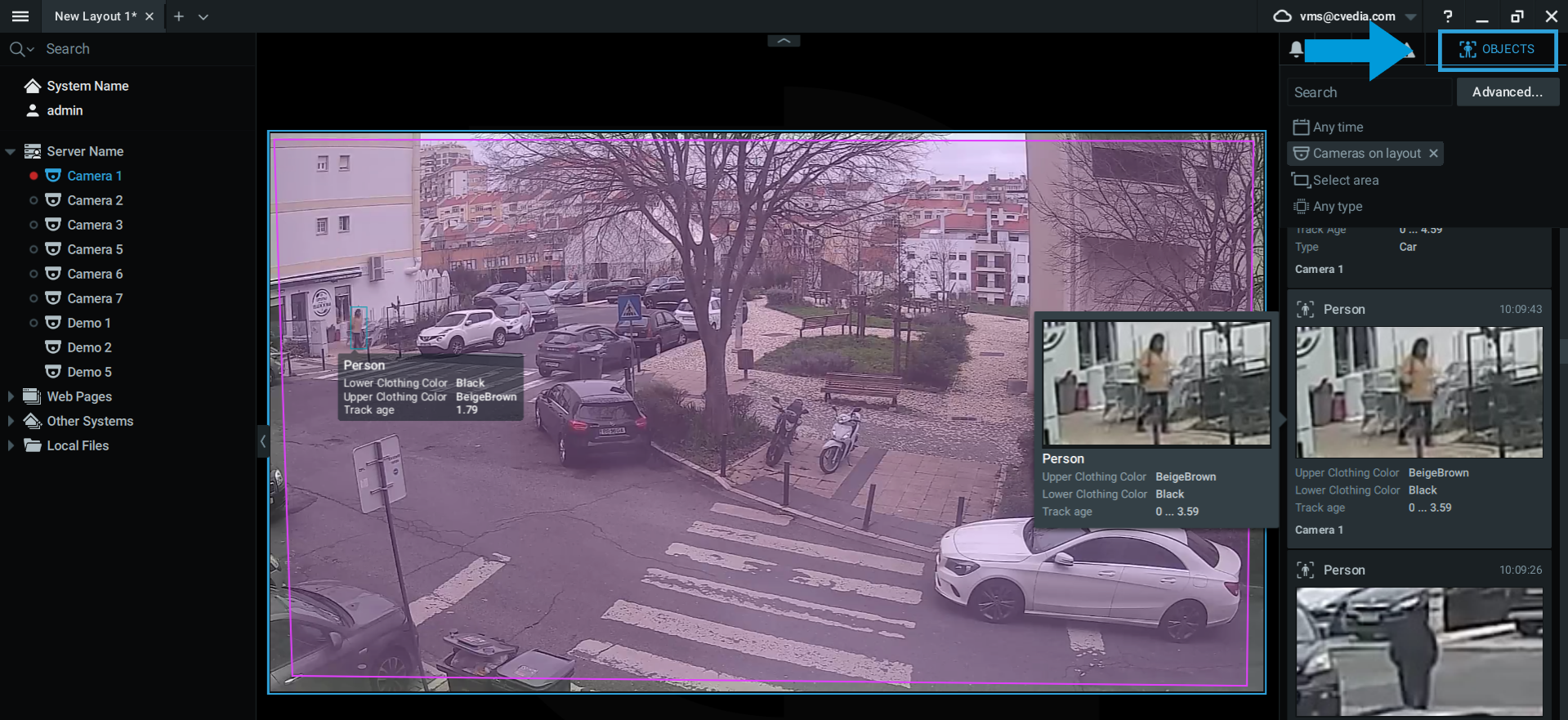
- You can leverage Advanced Search functionality to filter out objects within existing detections based on vehicle and clothing color.
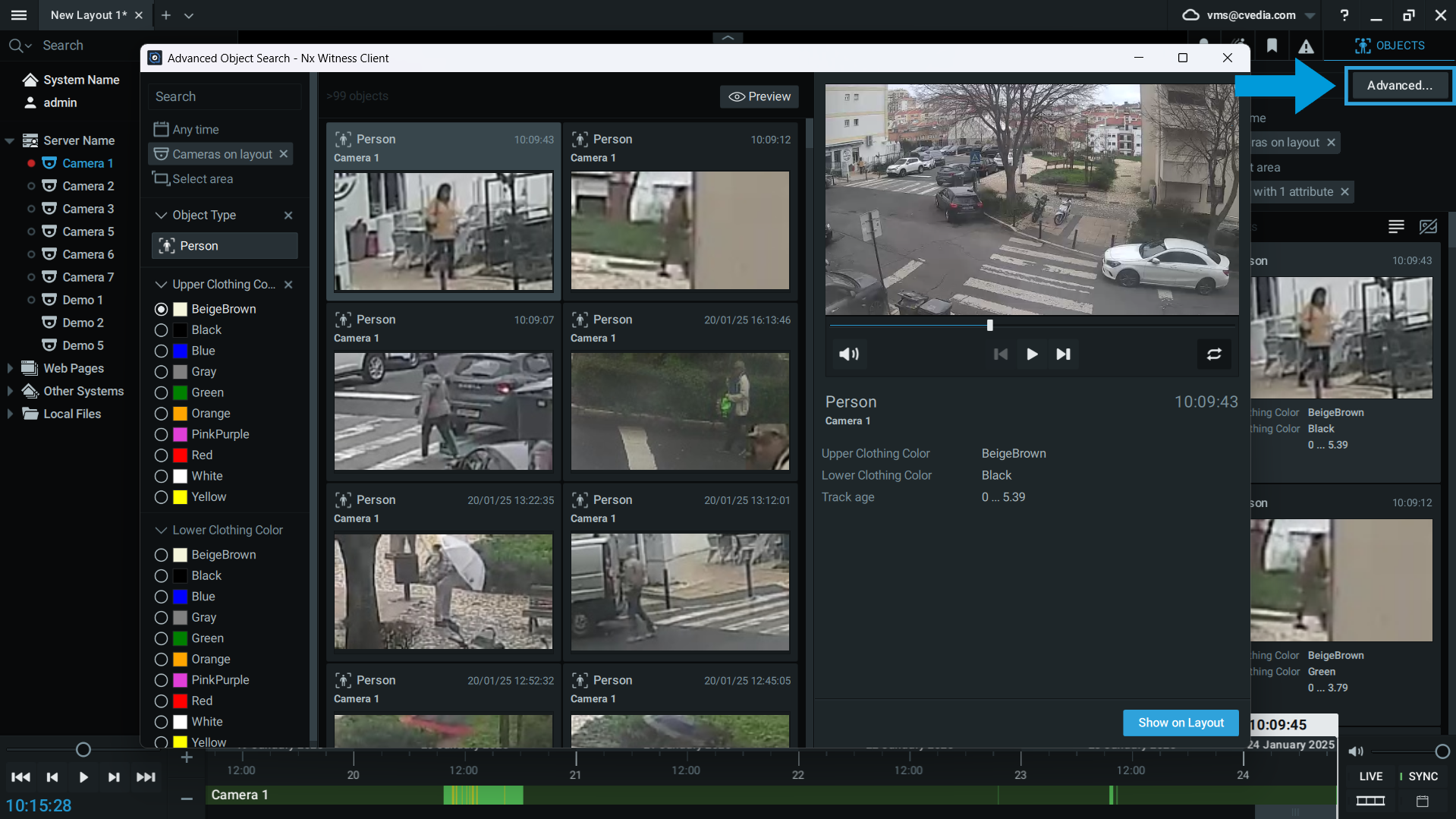
Available Search Attributes
For Vehicles:
- Vehicle type
- Vehicle color
For People:
- Upper clothing color
- Lower clothing color
For Animals:
- Species (bear, elephant, wolf, cat, dog, bird, deer)
Available Analytics Events
The system can generate events for the following types of analytics. You can enable specific analytics types for your cameras in the CVEDIA-RT plugin configuration.
Standard Security Events
- Intrusion Detection: Objects entering restricted areas
- Area Enter/Exit: Objects entering or leaving monitored zones
- Loitering: Objects remaining in an area longer than specified time
- Object Guarding: Objects being removed from protected areas
- Object Left Behind: Objects being abandoned in monitored areas
- Crowding: Too many objects in a defined area
- Tailgating: Multiple objects crossing a line in close succession
- Line Crossing: Objects crossing virtual boundaries
Event Information
Each event in the search results contains:
- Timestamp: When the event occurred
- Camera: Which camera detected the event
- Event Type: The type of analytics that triggered the event
- Object Information: Details about the detected object (person, vehicle, etc.)
- Thumbnail: Visual preview of the detection
- Attributes: Searchable characteristics of the detected object (color, type)
Technical Support and Reporting
At CVEDIA, we focus on delivering superior detection accuracy for Security and Surveillance use cases by training our models with synthetic data and refining them through continuous customer feedback. Our models evolve with every release, incorporating real-world insights to achieve unprecedented accuracy and reliability.
Why your feedback matters
By reporting false positives, you contribute to enhancing our models' accuracy. We analyze every report to introduce new parameters into our training process, ensuring each release of the plugin delivers improved performance. Your input helps us solve real-world challenges and enhance your surveillance capabilities.
If you'd like to help improve our product, here's how you can report false positive detections.
Reporting from Nx Witness Client UI
The CVEDIA-RT AI Analytics plugin for Nx Witness includes a new reporting feature that is intuitive and easy to use.
False Negative Reporting
-
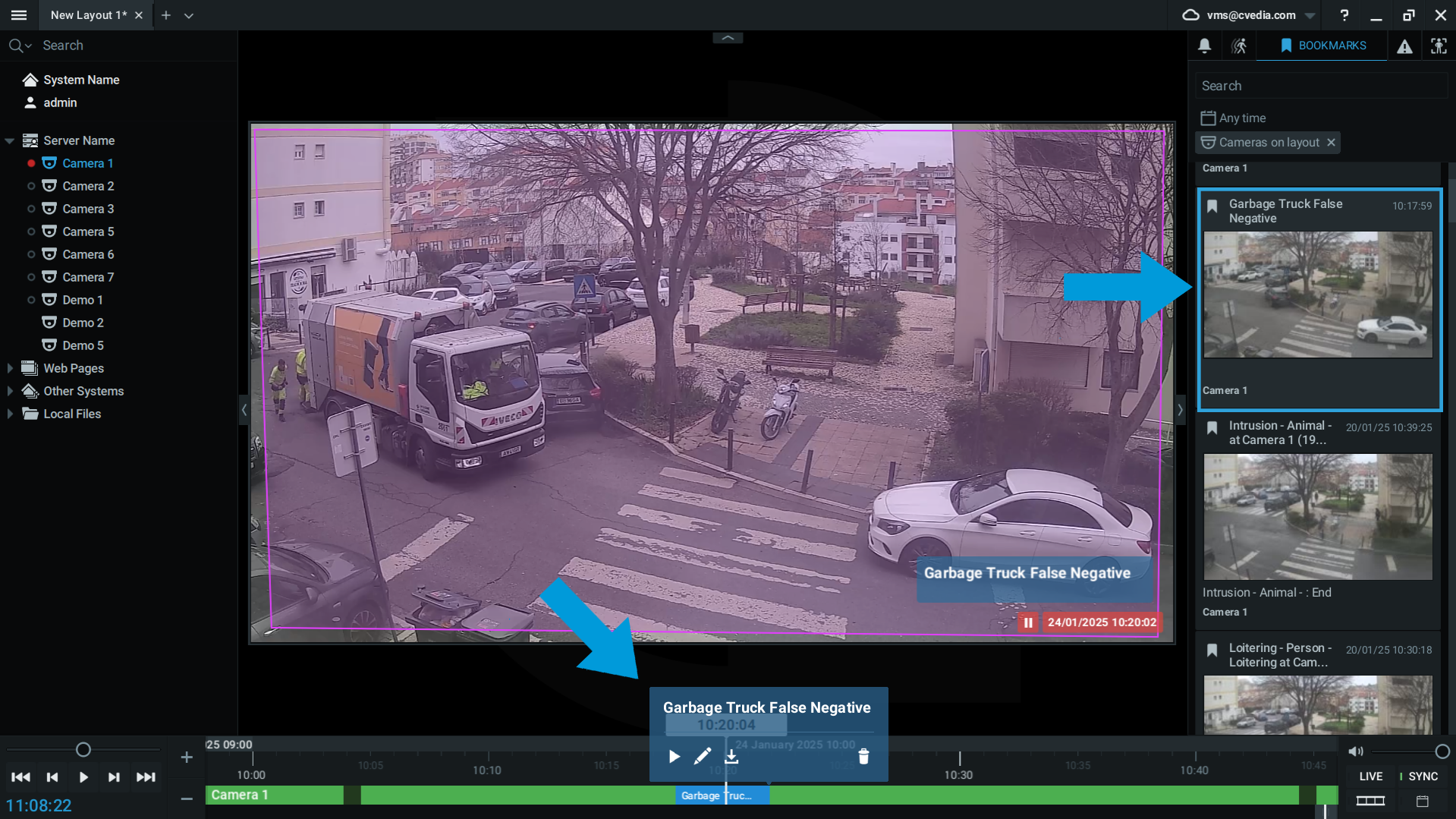
Create a Bookmark:
- Identify the issue in your Nx Witness timeline.
- Create a bookmark that spans 15-30 seconds, ensuring the issue is clearly visible within this time frame
-
Navigate to Camera Settings:
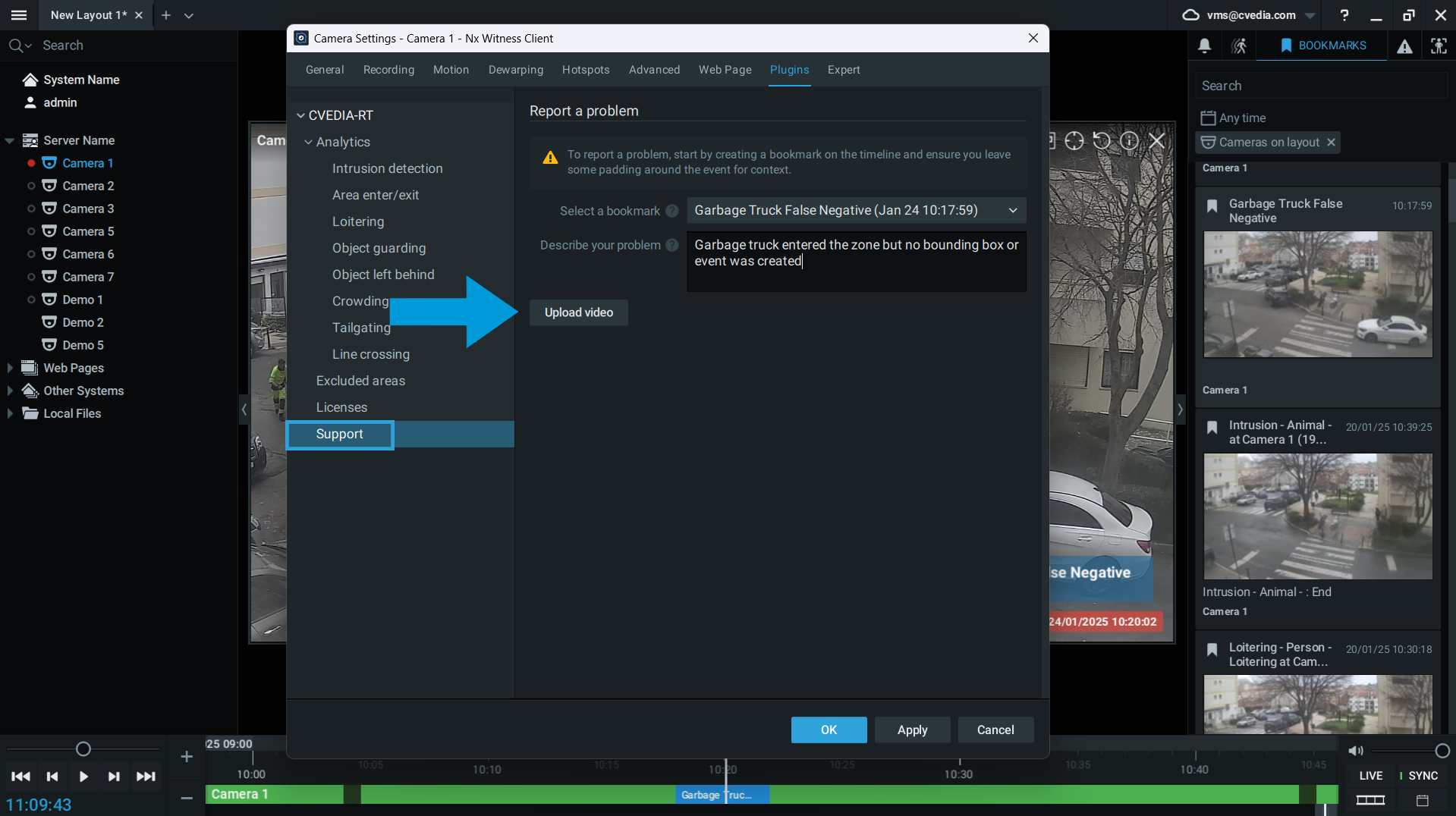
- Open the camera's settings and go to Plugins > CVEDIA-RT > Support.
-
Submit Your Report:
- Select the bookmark you created.
- Write a brief description of the issue.
- Click "Upload video" to send the report.
-
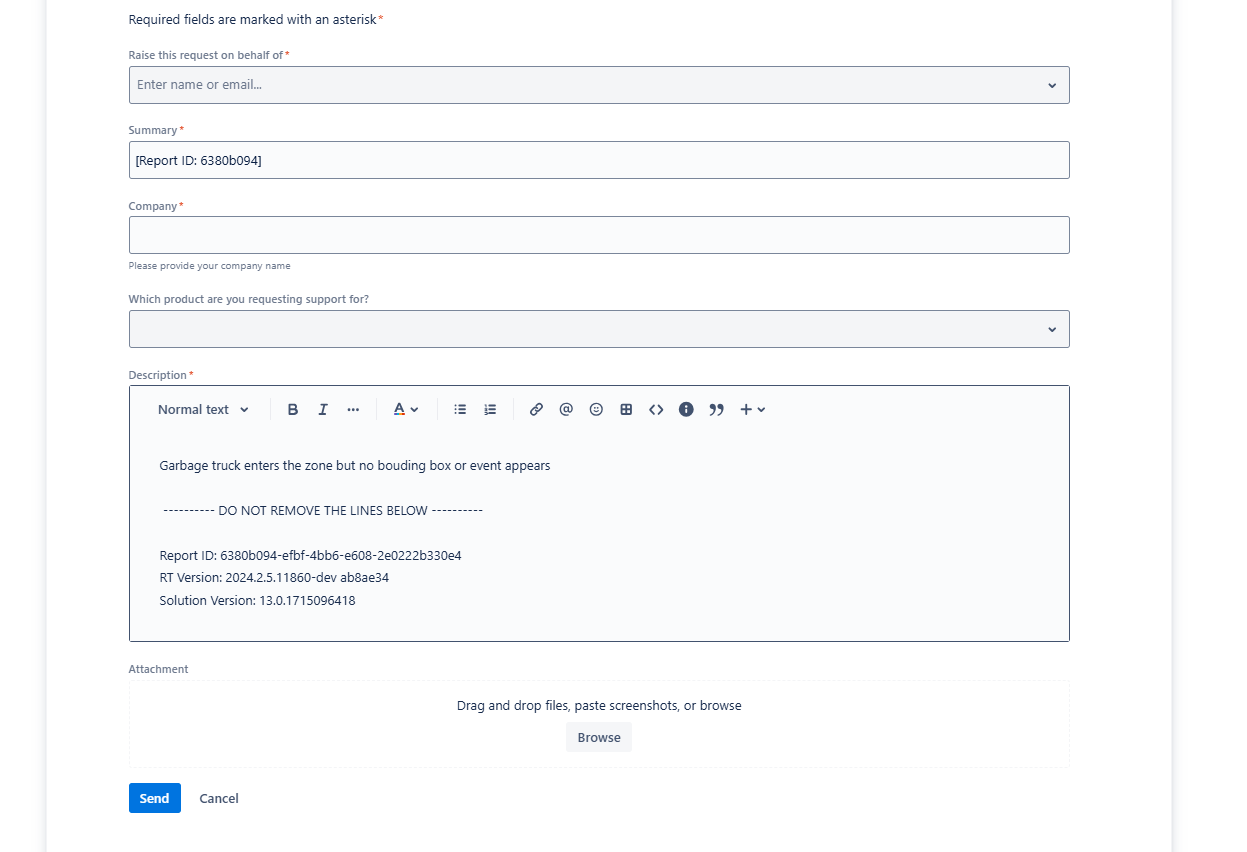
(Optional) Open a Tech Support Request:
- For more detailed explanations, submit a support request via our Tech Support Portal directly from the reporting page.
- Highlight why resolving this issue is critical for your use case
False Positive Reporting
-
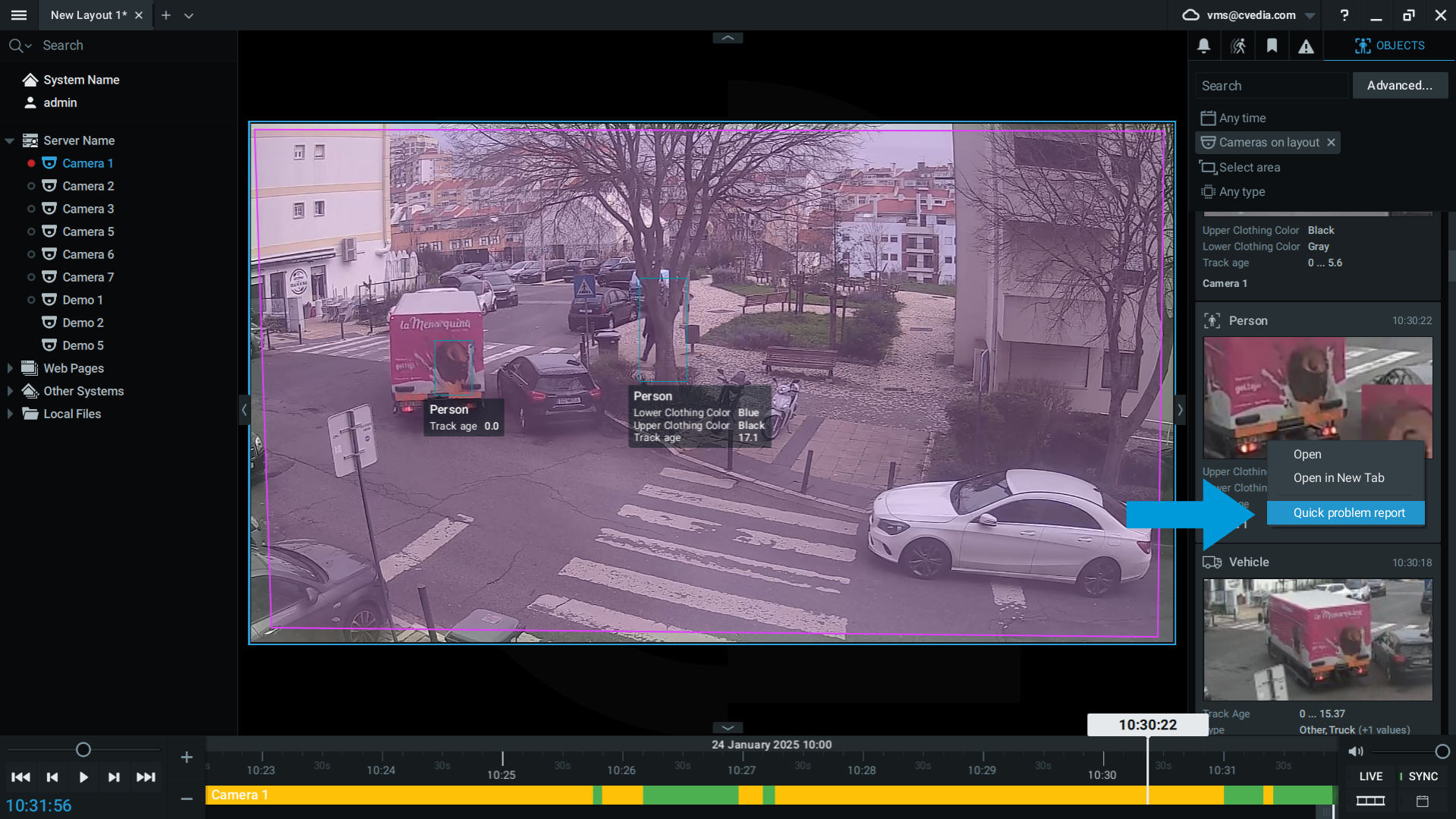
Go to the Objects tab:
- When the plugin is enabled, navigate to the Objects tab in the Nx Witness UI.
-
Right-Click to Report:
- Right-click on the object's thumbnail and choose Quick Report
-
Provide a description
- Add a description of the issue to give context to the false positive.
Notes
Reports submitted through this method are anonymous. If you want to emphasize the importance of your report, we recommend using Method 1 - Reporting via Bookmarks - and opening a support ticket with the automatically generated link within Nx Witness Client.
Getting Help
If you need assistance with using the search features or understanding the analytics results:
- Contact your system administrator for configuration-related questions
- Use the CVEDIA reporting feature for detection accuracy issues
- Submit a support request through the CVEDIA Tech Support Portal for technical issues. Please refer to the following guide: How to Submit a Support Request.